
To add a new e-card to giving.natureconservancy.ca, ensure you have the following details:
- Heading
- Card Title
- E-card Category
- Product Description
- Short Description
- Default Message
- Image (saved in both English and French)
- Image Alt-Text
- Photo Credit
- Package Code/SKU
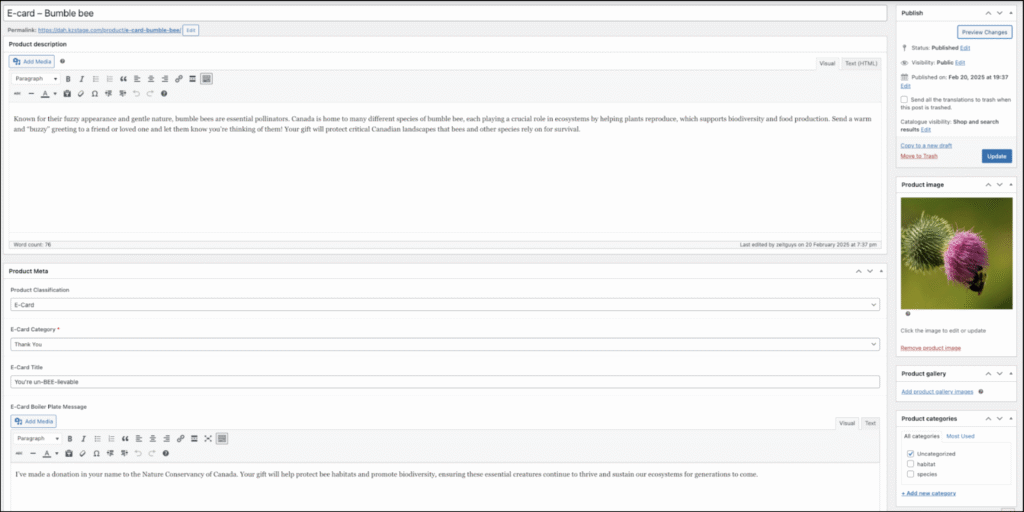
This information can be found in the provided spreadsheet.
Image Preparation & Upload
- Download the image from the link in the spreadsheet.
- Resize to match existing e-cards.
- Save two versions:
- English: ecard-{subject}-en.jpg
- French: ecard-{subject}-fr.jpg
- (Example: ecard-cardinal-en.jpg, ecard-cardinal-fr.jpg)
- Upload both images to the media library and assign them as the product image.
Product Data Configuration
- Set the Product Type to Variable Product.
- Inventory Tab: Enter the product SKU in the designated field.
- Attributes Tab:
- Add a new attribute titled “Please select your donation amount.”
- Enter the following values: $25 | $50 | $100 | $150 | $200.
- Uncheck “Visible on the product page.”
- Save the attributes.
- Variations Tab:
- Generate variations.
- Click “Add Prices” and specify the price range as [min price] – [max price].
- Save the changes.
Adding the E-Card
- In the WordPress admin panel, navigate to E-Cards in the sidebar and click “New E-Card”
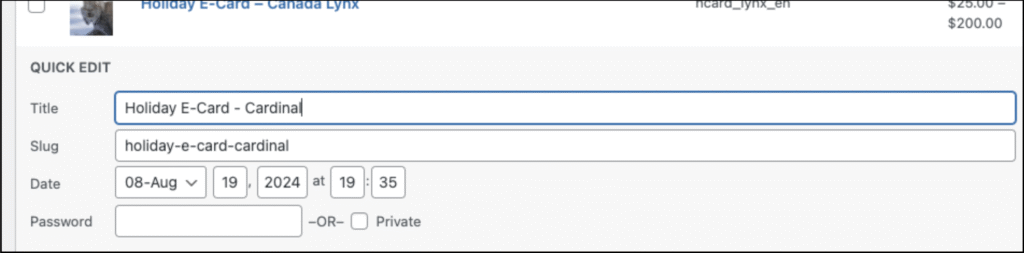
- Copy the Product E-Card Slug/Link and paste it into the “Add title” field. This will automatically inject the correct slug into the E-Card Link.
- Replace the title with the actual E-Card Title (e.g., Holiday E-Card – Cardinal).
- Ensure the slug matches the one on the Products page.
- Assign the appropriate E-Card Category and click Publish.
- Repeat the process for the French version.
Testing the E-Card
- Visit the newly added e-card on the website.
- Select a donation amount and click “Add to Cart.”
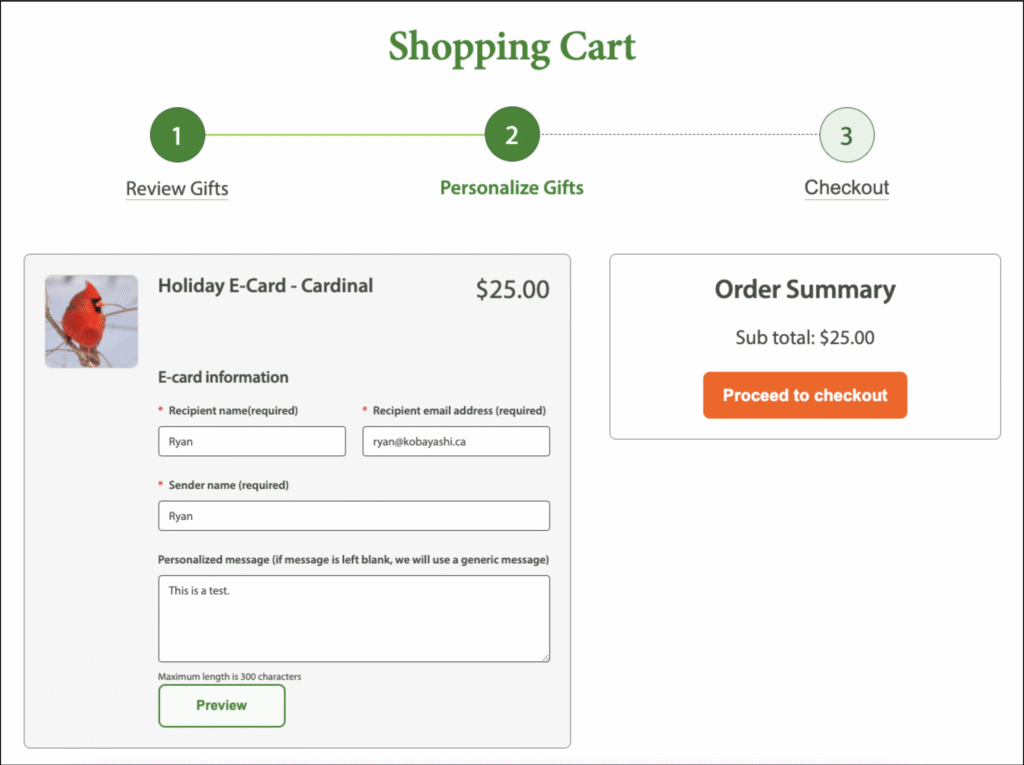
- Click “Proceed to Personalize Gifts.”
- Enter the following test details:
- Recipient Name
- Recipient Email Address
- Sender Name
- Personalized Message (e.g., “This is a test.”)
- Preview the e-card to verify its appearance.
- Click “Proceed to Checkout.”
Payment Testing
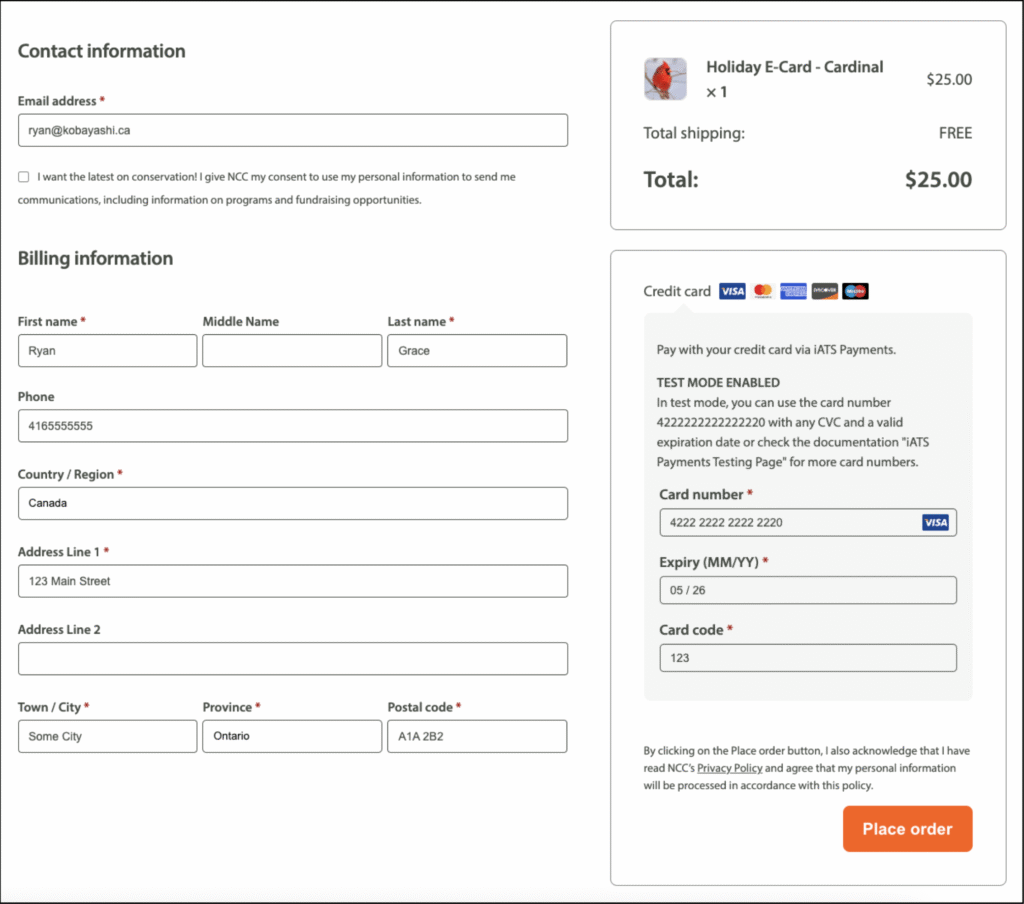
- Under Total, confirm that “TEST MODE ENABLED” is displayed.
- Enter the test credit card details:
- Card Number: 4222222222222220
- Expiry Date: Any future date
- CVC: Any three digits
- In the Billing Information section, enter a valid Contact Email Address (accessible for confirmation emails). Other billing details can be arbitrary.
- Click “Place Order.”
Verifying Confirmation Emails
- Check the Recipient Email Address and Contact Email Address for the following emails:
- Order Confirmation: “Thank you for your gift [Contact Name], here is your order confirmation.”
- E-Card Notification: “[Recipient Name] has sent you an E-Card from The Nature Conservancy of Canada!”
- In the second email (recipient notification), click “View your e-card here!” and confirm that the e-card displays correctly.
Once these steps are completed and verified, the e-card is successfully added and ready for use.
