
cPanel Backup and Restoration – Quick guide
Use the ‘Backup’ utility within the accounts cPanel to create a full backup:
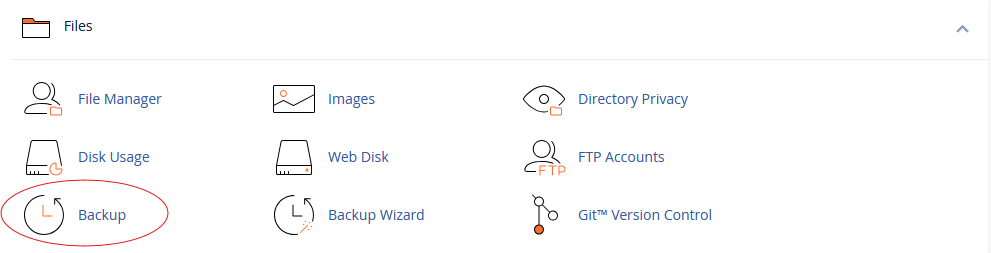

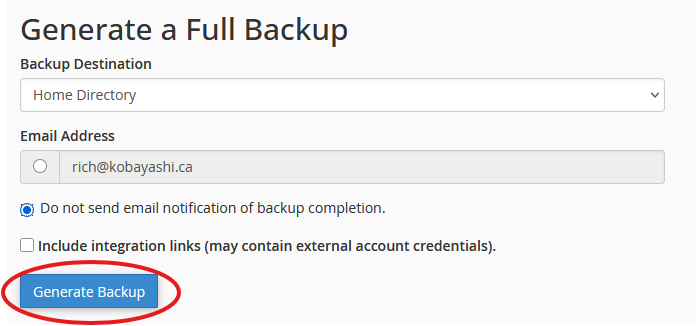
Depending on the size of the account, the backup could take a few seconds to several minutes. Once a hyperlinked file is visible here, you know it’s complete:

The backups are kept in the homedir of the account (before the public_html directory). Example:
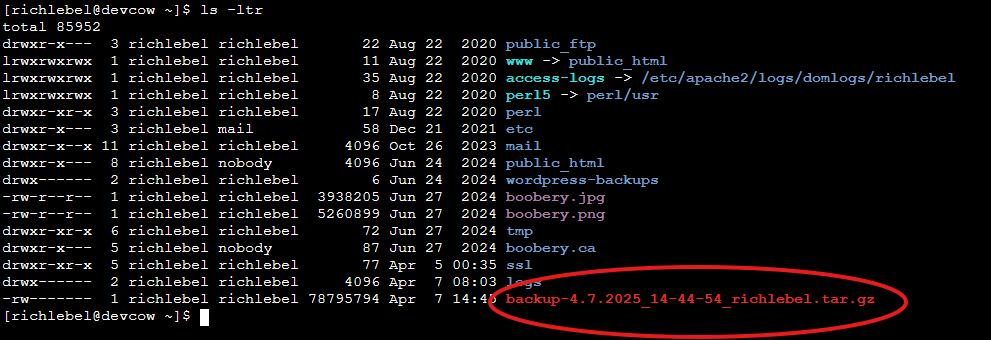
Backup restoration:
You cannot restore a full cPanel backup from within the account itself. You need to be logged in as root, and restore it from either the command line, or via: https://devcow.kzhost.net:2087/cpsess4808644432/scripts5/transfer-cpanel-account in WHM (link specific to Devcow):
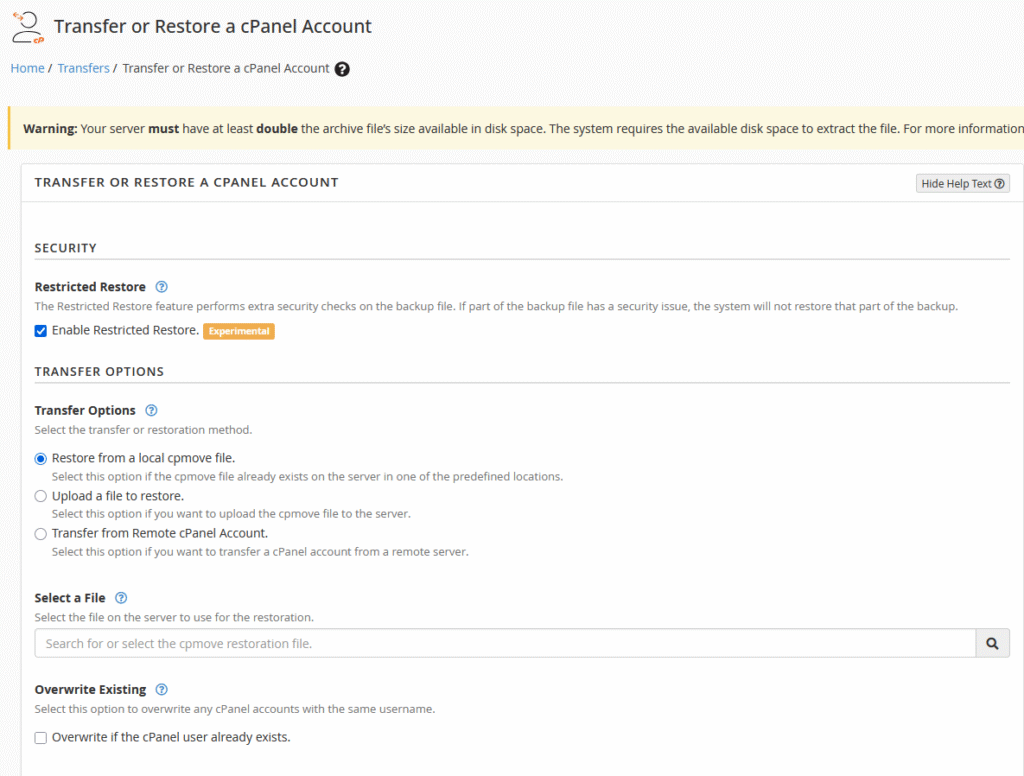
To do so via command line (recommended), the easiest method is to:
- Move the backup file to the main /home/ directory (example file shown):

- Use the following command to restore the backup (example file shown):

Command: /scripts/restorepkg –force <backup file>
*use extreme caution to ensure you are restoring the correct file*
Example end of command input below:

The entire process usually takes a few seconds, to a few minutes for a very large account
