
This guide provides step-by-step instructions for implementing our universal email signature across all platforms: Outlook Desktop, Outlook Web, and WHMCS.
Pre Checklist
Before implementing, ensure you have:
- Access to Client Files
- Access to your Kobayashi Outlook Email
- Access to your WHMCS account
Configure your personal Outlook email signature
- Head over to Email Signature Template.docx in Client Files.
- From here, you will see all of the our employees and their respective information
- The first list of signatures will be the ones used for Outlook
- Please replace [Job Position], with your actual job position.
- NOTE: please remove the brackets as well “[“ and “]”
- Next, this is optional, please replace the temporary phone number (555) 555 5555 with your actual phone number.
- NOTE: please remove the “[Optional]” next to the phone number
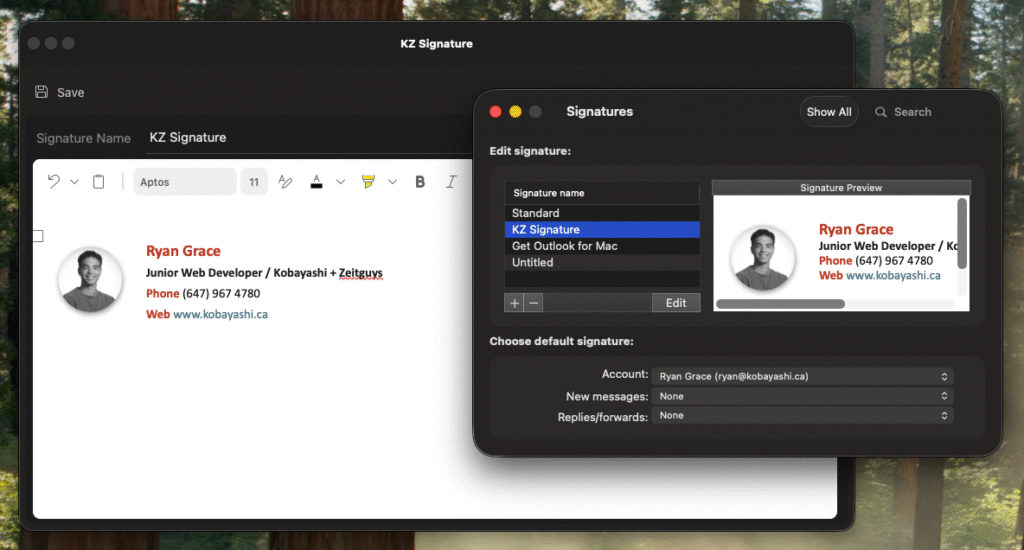
- Please refer to the image below to see what the final signature should look like.
Configure your personal WHMCS signature
- Head over to Email Signature Template.docx in Client Files.
- From here, you will see all of the our employees and their respective information
- The second list of signatures will be the ones used for WHMCS, it should be at the bottom
- Please replace [Job Position], with your actual job position.
- NOTE: please remove the brackets as well “[“ and “]”
- Next, this is optional, please replace the temporary phone number (555) 555 5555 with your actual phone number.
- NOTE: please remove the “[Optional]” next to the phone number
1. Adding signature for Outlook Desktop for MAC
Create a new Signature
- Open Outlook Desktop
- Go to File > New > Mail
- Click Signatures…
- Click Manage Signatures
- Click the plus icon to create a new signature
- Name it “Company Signature“
- Copy your Outlook email signature form the doc into the text area
2. Adding signature to WHMCS
- Log into WHMCS
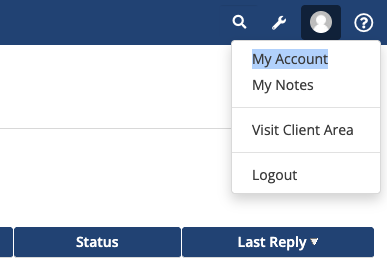
- In the top right corner, you’ll see your profile icon. Hover over it and select “My Account”
- Then go to “Support Ticket Signature”
- Paste in your respective WHMCS email signature from the doc. As an example, the final signature should look like this:
Morgan Kobayashi-Lebel
Marketing Specialist / Kobayashi + Zeitguys
(438) 356 9145
www.kobayashi.ca
3. Adding signature for Outlook Web
- Go to https://outlook.office.com/mail/
- Click gear icon in the top right
- In the top left search email signature
- Click + New Signature and name it Company Signature
- Copy your Outlook email signature form the doc into the text area
